
Appearance
Manage a bug report
Move recording
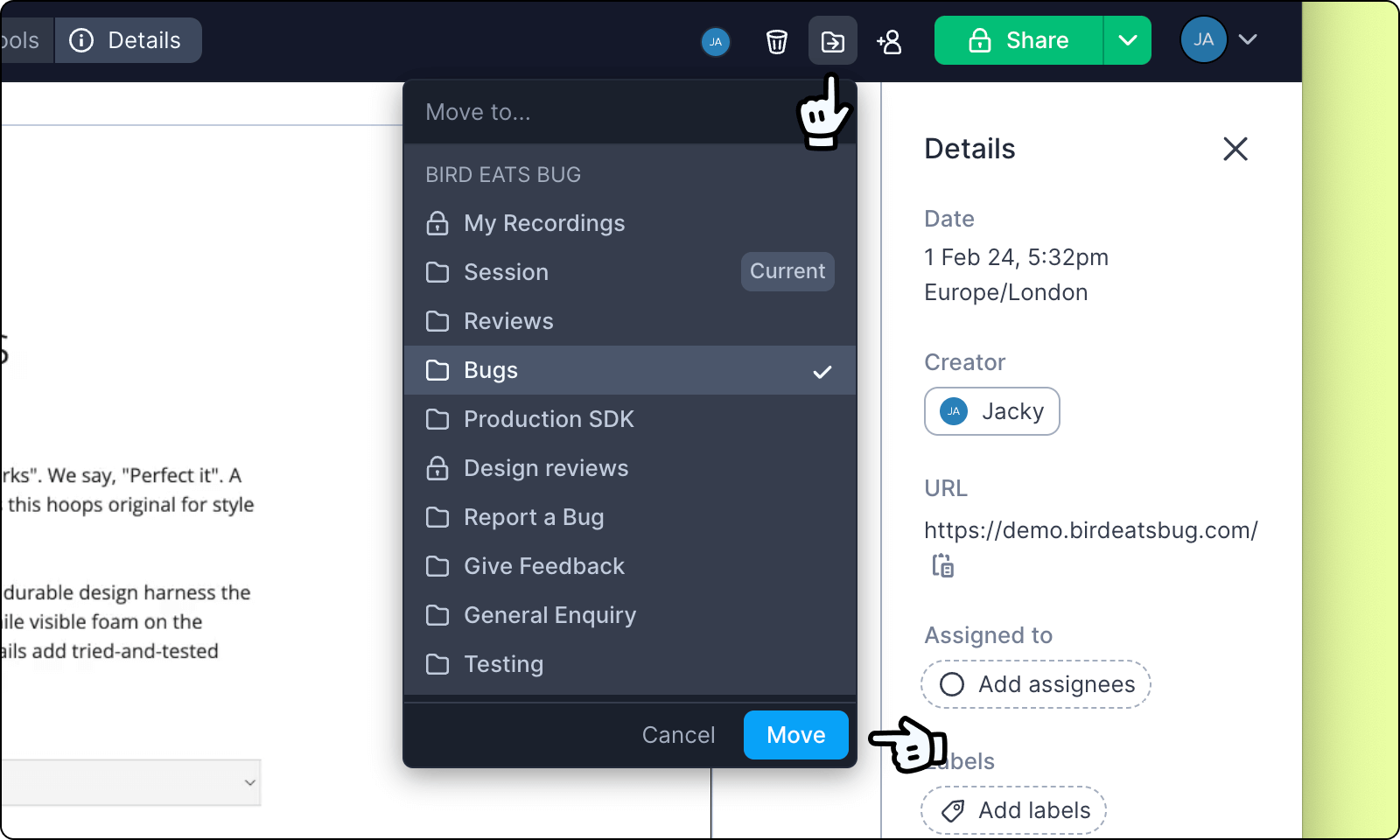
Recordings are stored in specific folders within a workspace. To move a bug report to a different workspace or folder, click the Move button in the top-right and select the destination folder.
Delete recording
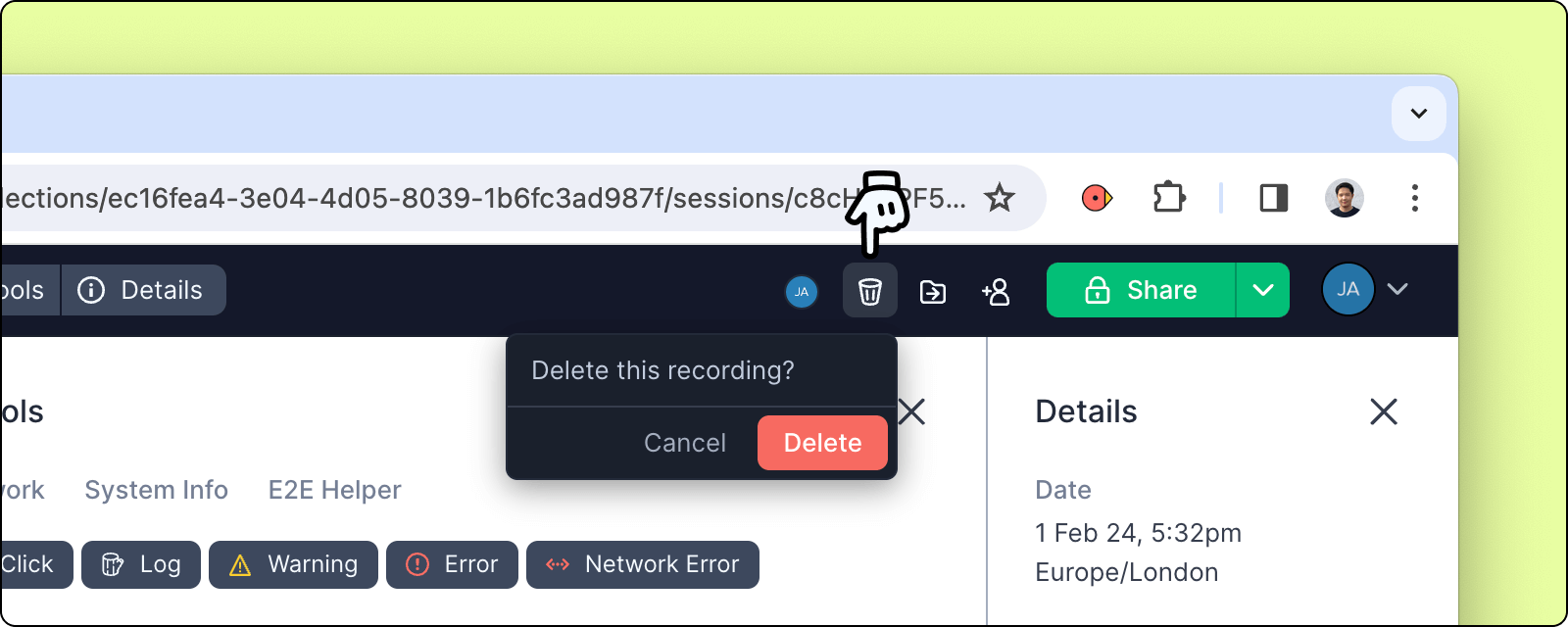
To delete a recording, click the trash can button in the top-right.
Track recording views
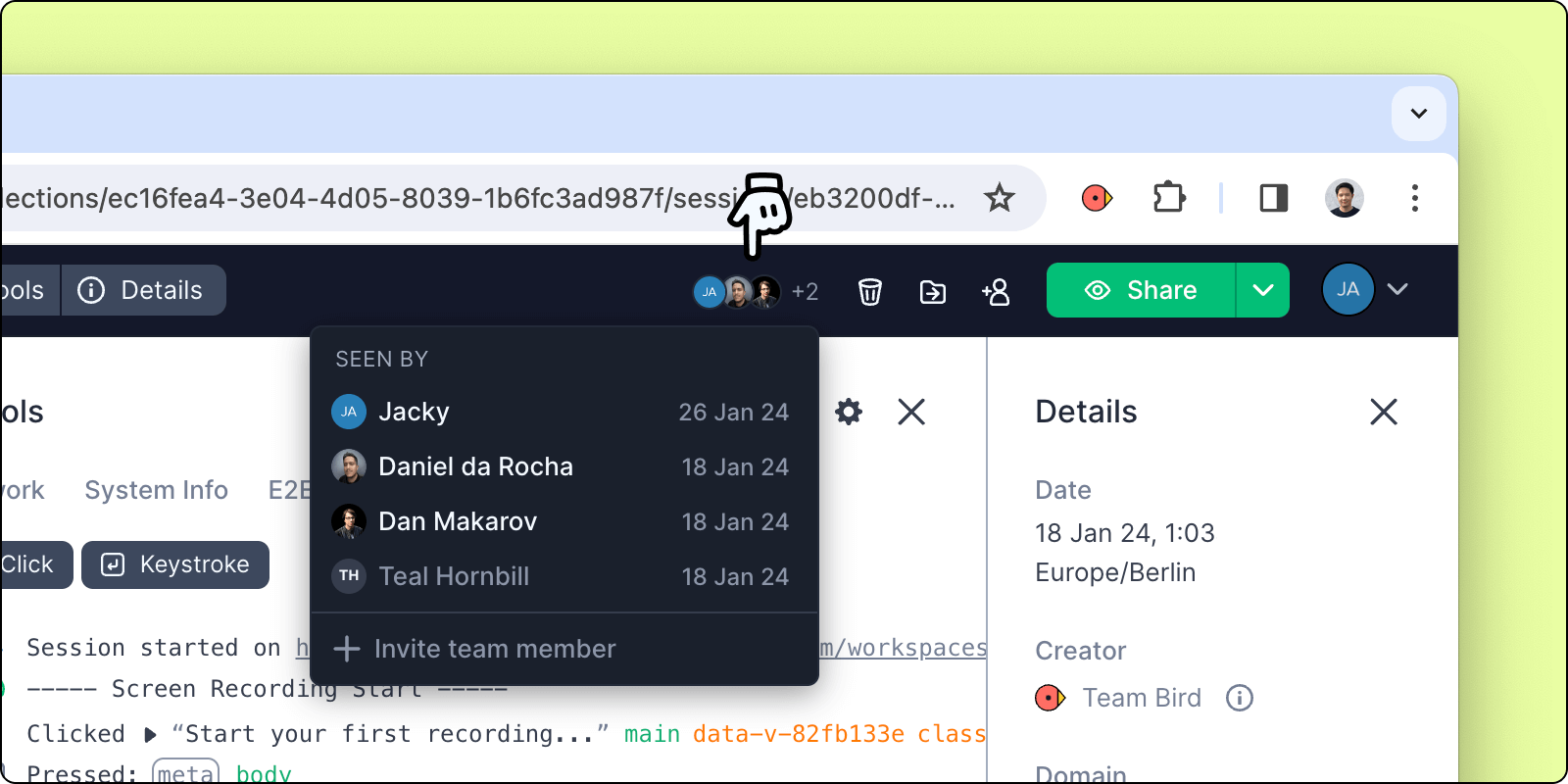
Every unique view of your recording is displayed here, so you can easily check who and when someone viewed your bug report. Click the views tracker to see more details of the viewers.
If your recording link is accessible by anyone, then you may also see anonymous viewers in the list, denoted by a random insect name and dark gray text.
Labels
Add labels to further categorise your bugs.
Add a label
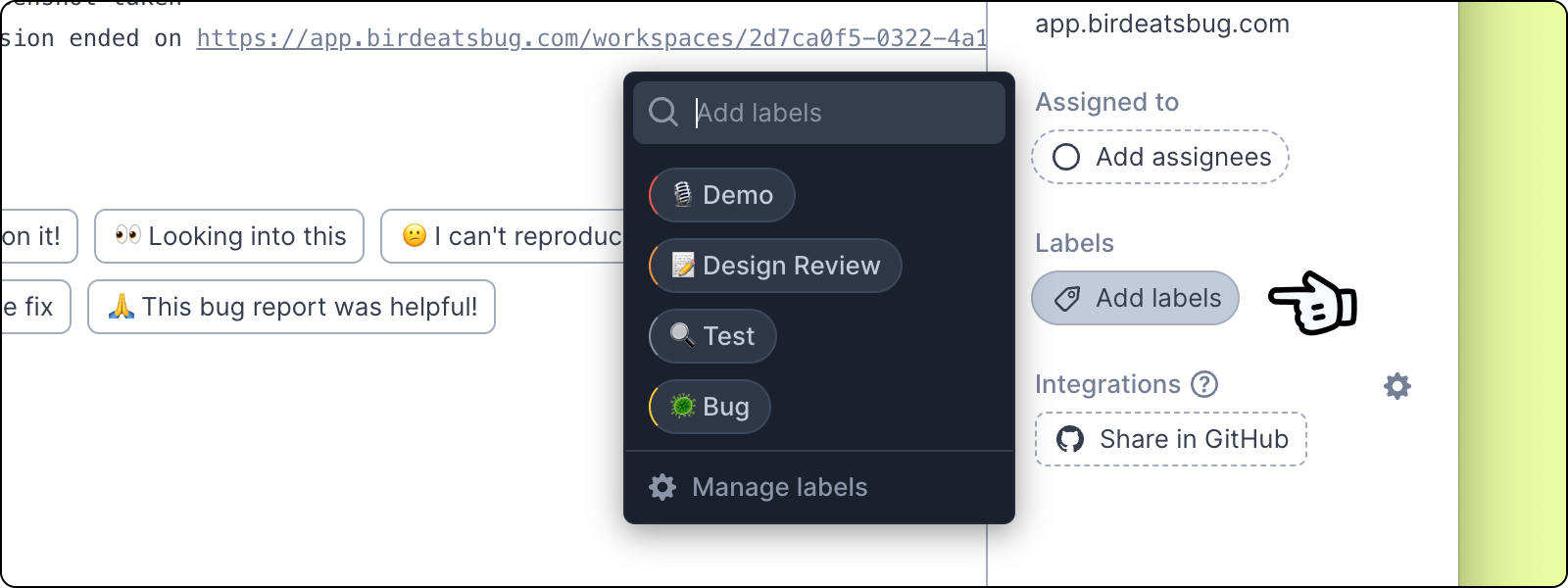
To add a label, click the Add label button in the details panel.
Manage labels
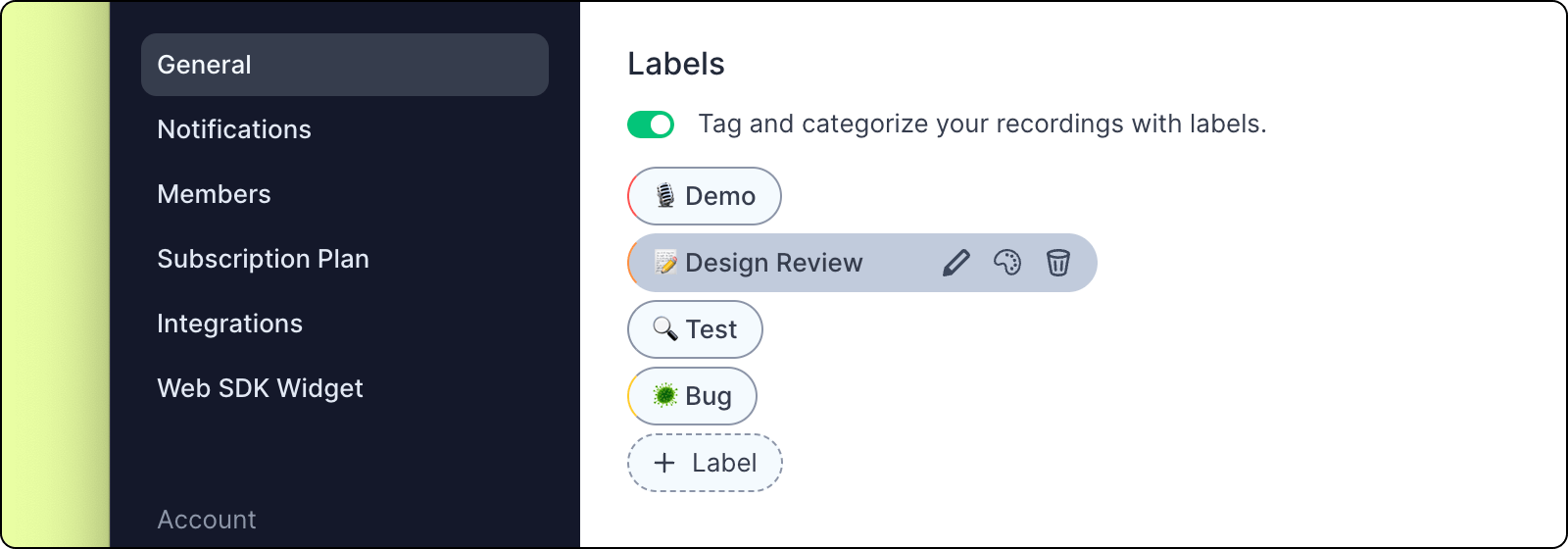
Labels can be created and managed in the general workspace settings.
Quick create new labels
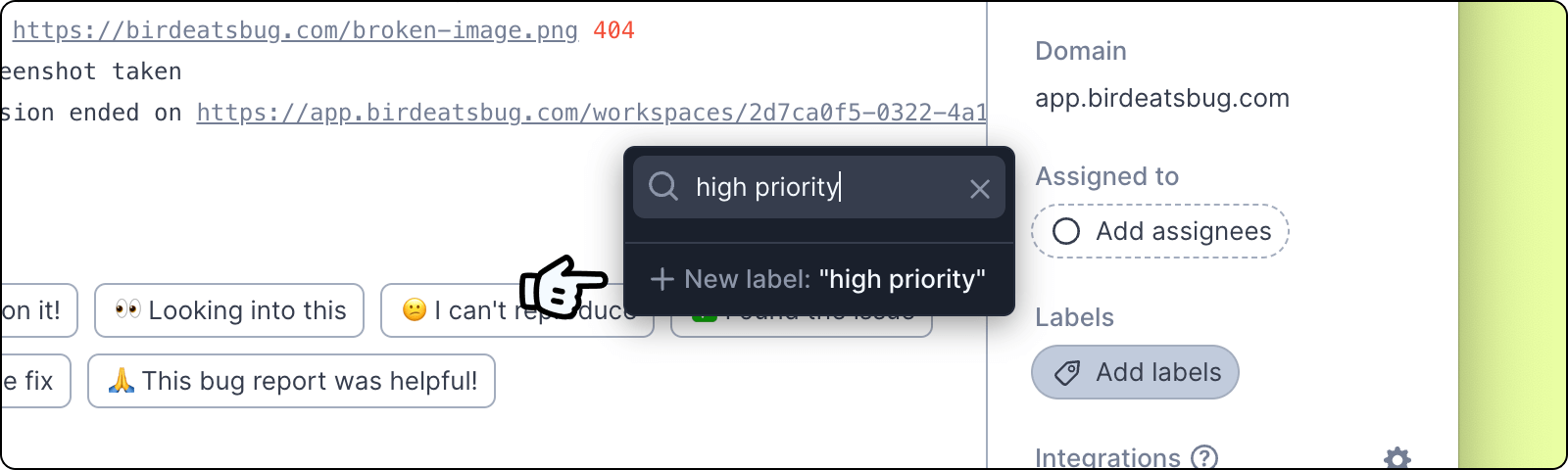
You can also create new labels from directly in the bug report. Type in the desired label in the search input, and if it doesn’t already exist, you can create one directly.
Assignees
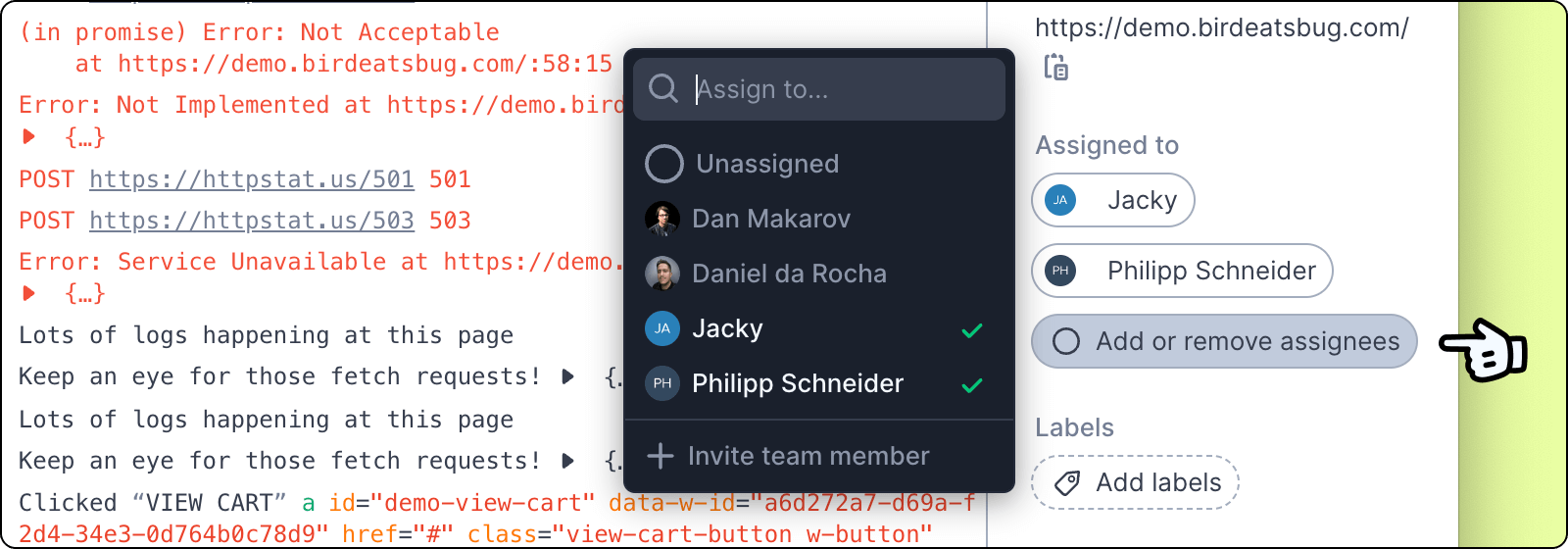
Bug reports can be assigned to multiple team members. Click the Add assignee button in the details panel.
When you assign a team member to a bug report, they will receive an email alert with a link to the bug report (unless they have intentionally disabled such notifications in their account settings - learn more about notifications).
Integrations
Integrations allow you to manage the bugs directly in your dedicated issue management tools such as Jira, GitHub etc.
Integrations with Bird can be triggered automatically or manually. Check out our integrations page to learn more about how these work.